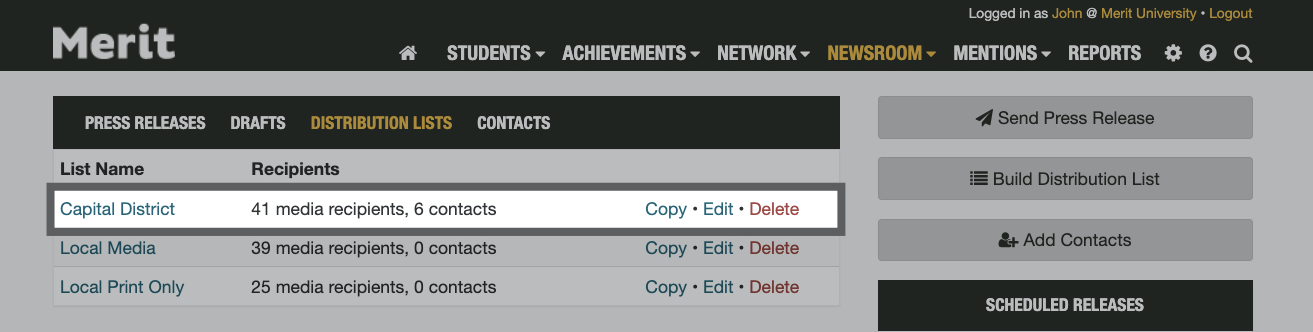
This page contains a walkthrough for creating distribution lists through Merit's Newsroom platform.
Please note we recommend that you build a distribution list for your story before entering the press release workflow.
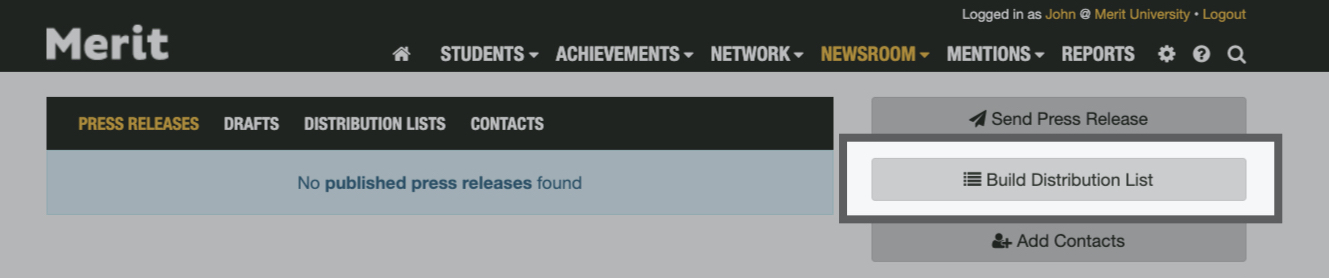
You can create as many distribution lists as needed in Newsroom. When you're ready to create a distribution list, go to the Newsroom tab and click the Build Distribution List button to get started:
Note: If you are an educational institution, you will have a nationwide Higher Education list available inside your account by default. This list can be edited as needed.

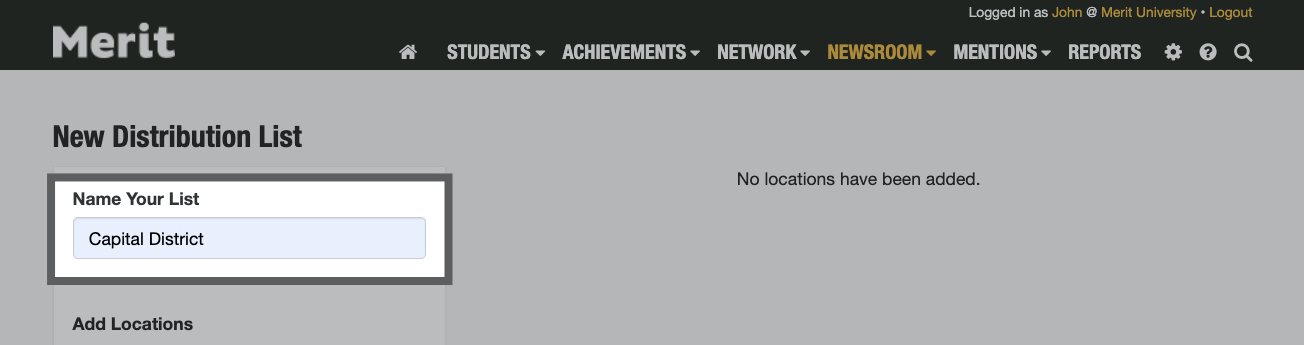
Name Your List
Begin by giving your list a name. Choose a name that summarizes the contents of your list and helps you easily identify it when publishing:
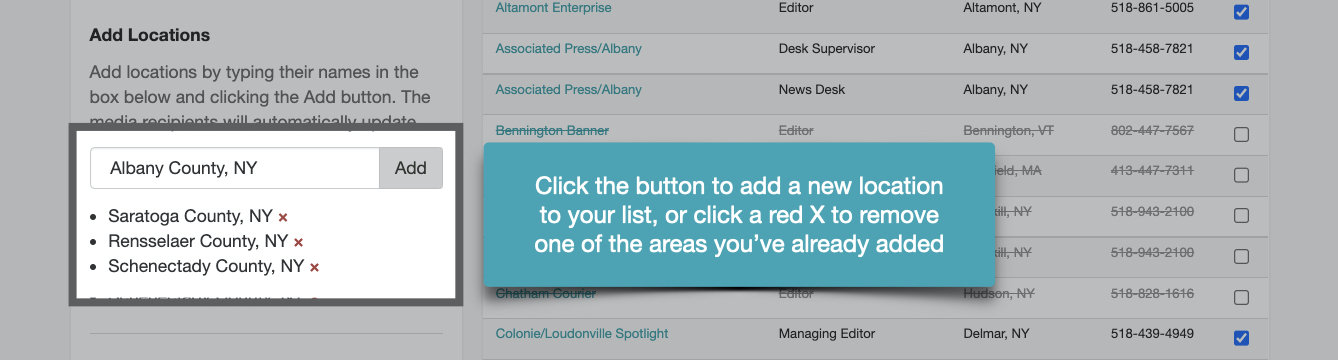
Add Locations
You can add as many geographic areas as you'd like to your list. The areas must all be added individually but can include a mix of both cities and counties:
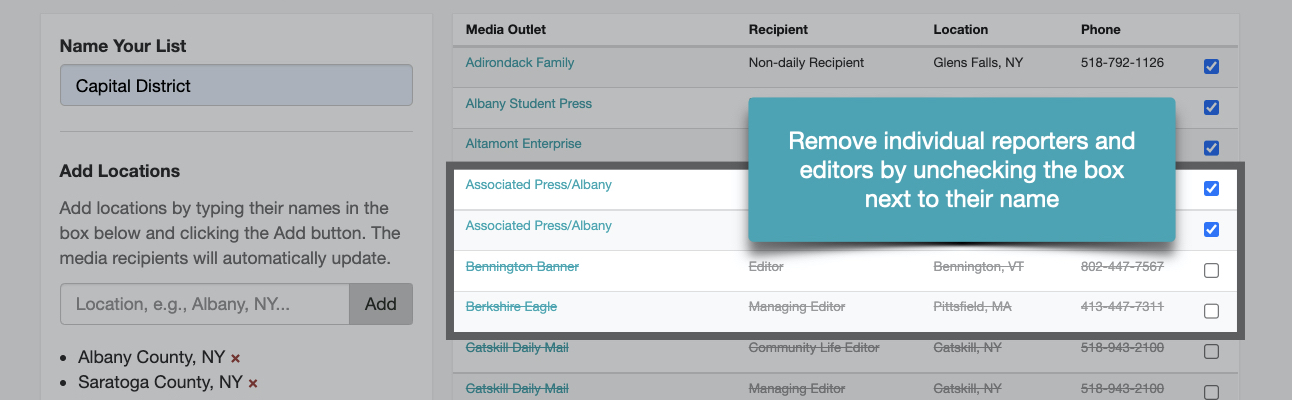
Edit Your Media Recipients
Adding a location to your distribution list will immediately display all of the media recipients from that area on the right-hand side of your screen:
Add Your Contacts
You can also add contacts outside Merit's media network to your distribution list. To do so, use the search box to locate and add your saved contacts, or manually enter their email addresses into the text field:
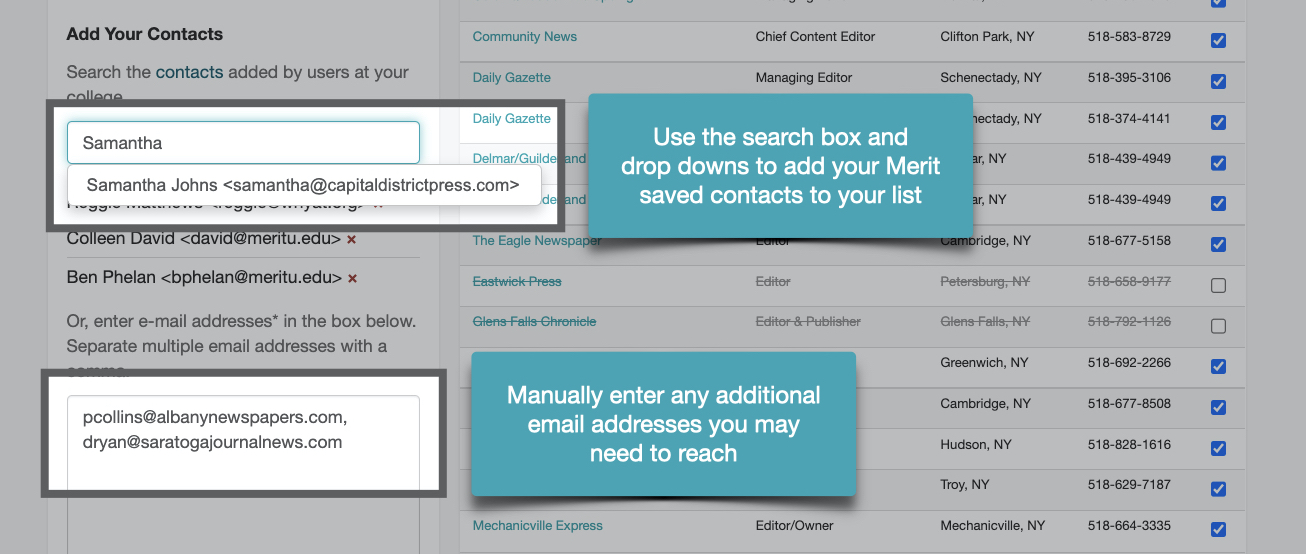
Pro tip: Saving your contacts in Merit will include them in your stories' overall statistics. Learn more about adding contacts here.
Save Your List
Click the Save List button to save your list inside your Merit account:

View Your Distribution List
All members of your team can access your saved list from the Distribution Lists tab under Newsroom: