This page contains a walkthrough for adding your own personal contacts to Merit's Newsroom platform.
Please note we recommend that you add your contacts before building a distribution list or entering the press release workflow.
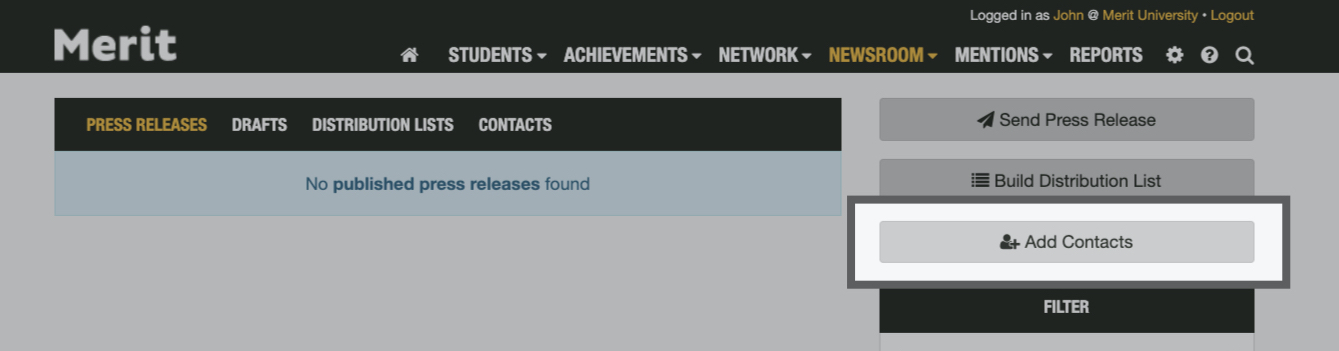
When you're ready to begin adding your personal contacts, go to the Newsroom tab and click the Add Contacts button to get started:
There are two ways you can add new contacts to your Merit account. Either by uploading a spreadsheet of your regular contacts or adding them manually.

Upload a Spreadsheet of Your Contacts
If you have a spreadsheet of contacts with first names, last names and email addresses, choose the Upload List option:
Manually Enter Your Contacts
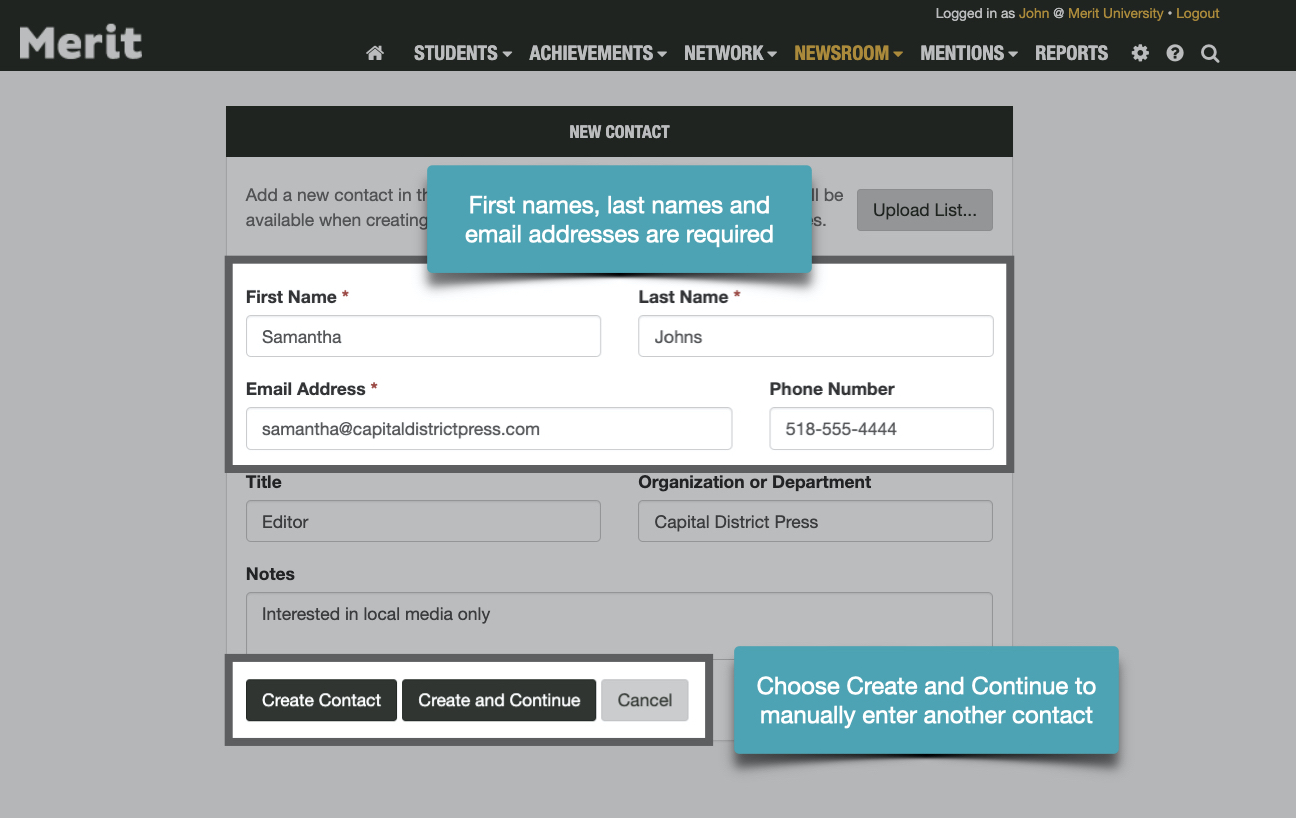
If you instead prefer to add your contacts manually, you can begin adding them here:
View Your Contacts
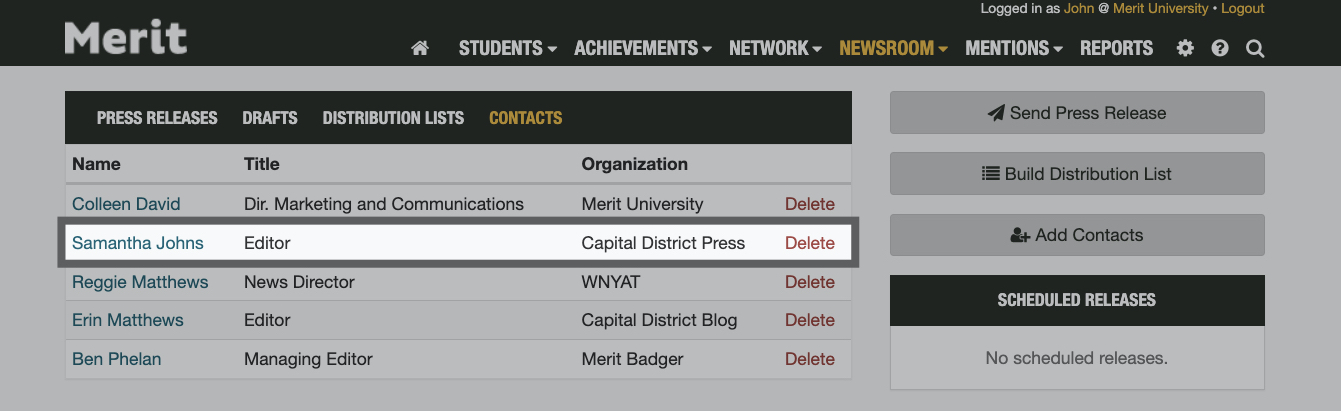
Once your contacts have been added, you can view them on the Contacts tab in the Newsroom section of your account:
After adding contacts, you will want to add them to a distribution list in Newsroom. This will ensure they all receive your press releases and you'll see analytics for your personal contacts. Learn more about building distribution lists here.
Pro Tip: If you have contacts (media and/or faculty) who you reach with every release you send, we recommend you add those contacts to a list and select that distribution list when publishing your press release.
